What does FlashBoot do?
FlashBoot for Windows Free Download is a lightweight utility that helps you create bootable USB drives from ISO files or existing Windows installations. It turns regular flash drives into portable operating systems or recovery tools. The software works with multiple Windows versions and supports various boot configurations.
FlashBoot free for pc is ideal for IT professionals, system administrators, and tech-savvy users who need to install or repair Windows on multiple computers. It’s also useful for creating portable workspaces or testing environments. FlashBoot simplifies tasks that typically require complex command-line operations.
Key features include support for UEFI and legacy BIOS systems, clone existing Windows installations to USB, and create emergency recovery drives. The interface is straightforward, making bootable drive creation accessible without advanced technical knowledge. FlashBoot saves time when deploying Windows across different machines or preparing backup solutions.
What Problem Does FlashBoot for Windows Solve?
Many users struggle when they need to install Windows on a computer without a working DVD drive. Modern laptops and desktops often lack optical drives entirely. FlashBoot solves this problem by creating bootable USB drives that work just like installation discs.
- Common Issues Users Face: When a computer crashes or won’t start, you need a recovery tool quickly. Traditional methods require technical knowledge of command prompts and disk partitioning. FlashBoot removes this complexity. It helps you prepare emergency USB drives before problems occur.
- Why Users Need This Software: IT professionals often install Windows on multiple computers. Carrying dozens of DVDs is impractical. A single USB drive with FlashBoot can replace them all. You can create portable Windows environments that run directly from USB without installing anything on the host computer.
- Real Use Cases: System administrators use FlashBoot to deploy Windows across office networks. Home users create recovery drives to fix boot errors. Technicians carry portable diagnostic tools on USB sticks. Students and developers test different Windows versions without affecting their main system.
- Practical Benefits: FlashBoot saves time compared to manual USB creation methods. It supports both newer UEFI systems and older BIOS computers. You can clone your entire Windows installation to a backup drive. This means faster recovery if your hard drive fails unexpectedly.
What Makes FlashBoot a Popular Optimization Tool?
Create Bootable USB Drives from ISO Files
FlashBoot lets you turn any USB flash drive into a bootable device using ISO image files. You simply select your ISO file and choose your USB drive. The software handles all the technical steps automatically. This feature works with Windows installation ISOs and recovery disc images.
You don’t need to type commands or understand complex procedures. FlashBoot copies everything correctly and makes the USB drive ready to boot on any compatible computer.
Clone Your Windows Installation to USB
FlashBoot copies your complete Windows system directly to a USB flash drive. Your programs, files, and settings transfer to the portable drive. You can boot this USB drive on different computers and access your familiar Windows environment.
This feature helps you create a backup system that runs independently. The cloning process preserves your desktop layout and installed applications. You get a portable workspace that follows you wherever you go.
Support for UEFI and Legacy BIOS Systems
FlashBoot creates USB drives that work on both modern UEFI computers and older BIOS systems. Many bootable USB tools only support one boot mode. This software automatically detects and configures the correct boot method for your needs.
You can use the same USB drive across different computer generations. This compatibility saves time because you don’t need separate drives for different machines. The software ensures your bootable USB works reliably on any system you encounter.
Build Emergency Recovery Drives
FlashBoot helps you prepare USB drives for computer emergencies before problems happen. These recovery drives can fix boot errors and restore damaged Windows installations. You select the recovery environment you want and FlashBoot creates the bootable rescue media.
The emergency drive includes diagnostic tools and repair utilities. When your computer won’t start normally, you boot from this USB to troubleshoot issues. This feature gives you a safety net against unexpected system failures.
Simple and User-Friendly Interface
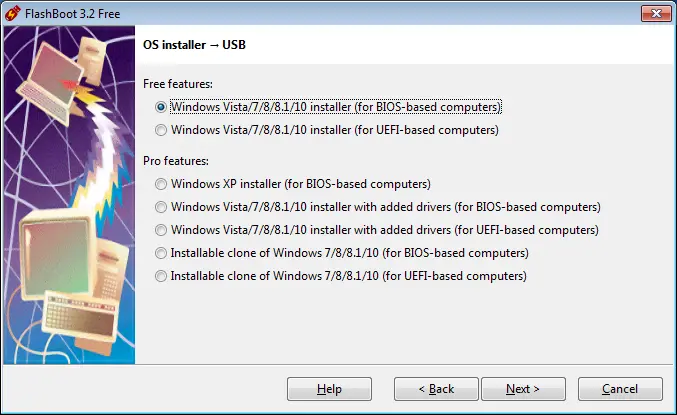
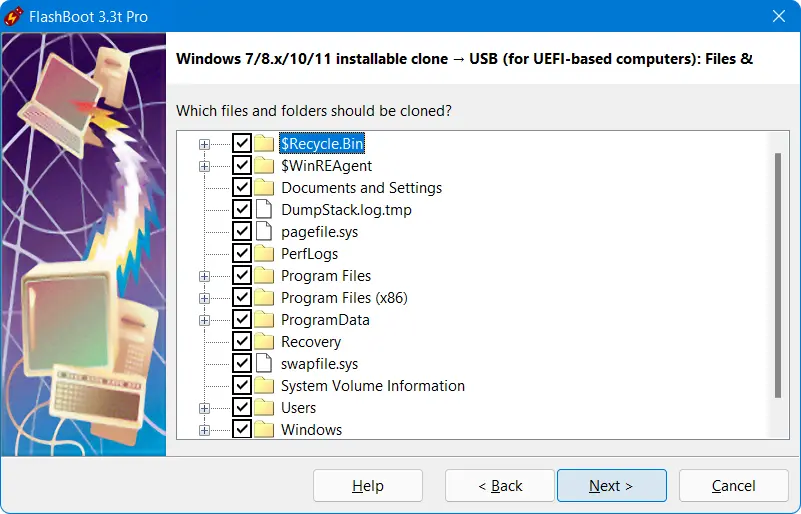
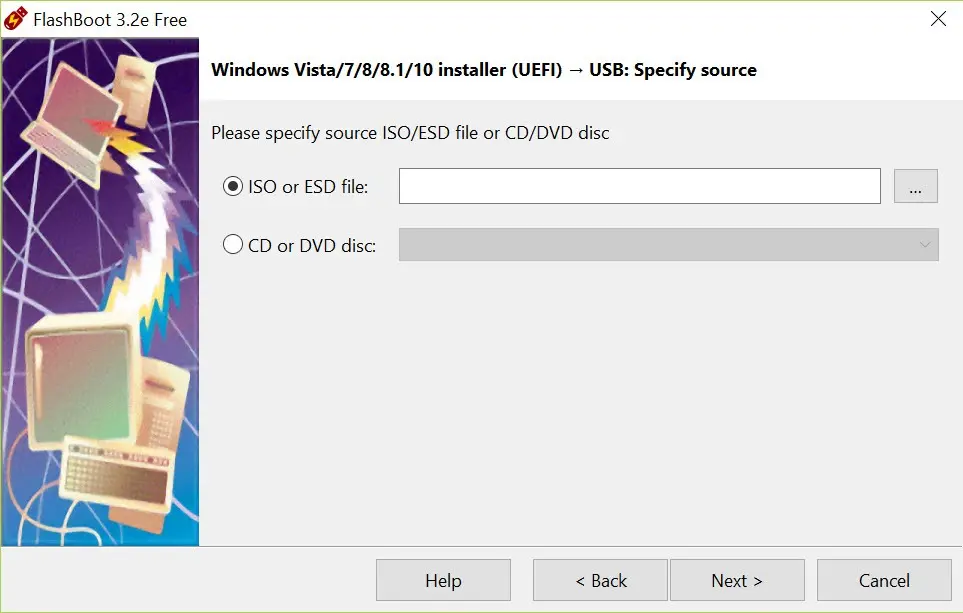
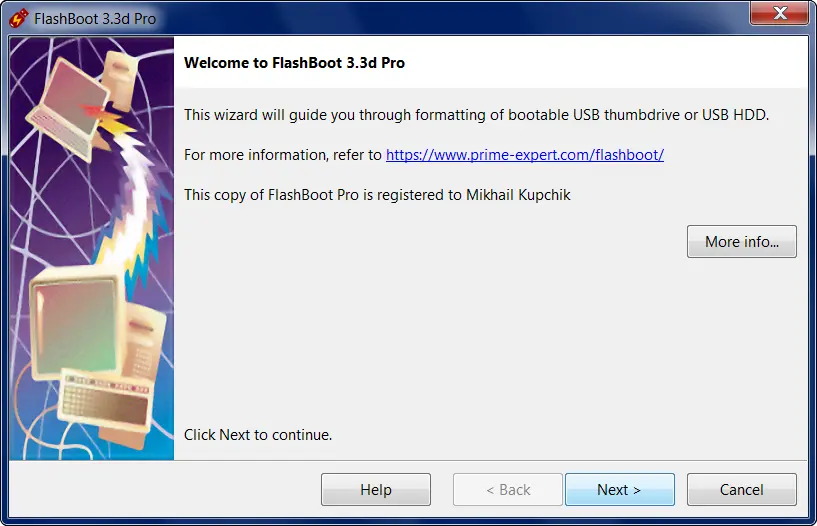
FlashBoot presents all options in a clean window that anyone can understand. You see clear labels and helpful descriptions for each choice. The software guides you through each step with simple prompts. You don’t face confusing menus or hidden settings.
Everything you need appears on the main screen in logical order. This straightforward design makes bootable USB creation accessible to beginners and experienced users alike.
Convert Between Different USB Boot Formats
FlashBoot transforms existing bootable USB drives into different formats and configurations. You can switch from one Windows version to another without starting from scratch. The software reorganizes the USB drive structure to match your new requirements.
This conversion feature saves the time you would spend reformatting and rebuilding. You preserve useful bootable drives by updating them instead of erasing everything. The flexibility helps you adapt your USB tools as your needs change.
Create Portable Windows To Go Workspaces
FlashBoot builds fully functional Windows environments that run entirely from USB drives. You install a complete Windows system on your flash drive without affecting the host computer. This portable workspace includes all standard Windows features and lets you install your own programs.
You plug the USB into any compatible PC and boot into your personal Windows environment. Your files and settings stay with you on the drive. This feature gives you a private computing space that travels in your pocket.
Fast and Efficient USB Creation Process
FlashBoot completes bootable USB creation quickly compared to manual methods. The software optimizes file transfers and skips unnecessary steps. You see progress indicators that show exactly what the program is doing. Most USB drive creation finishes in minutes rather than hours.
FlashBoot uses your computer’s resources efficiently without slowing down other tasks. The speed advantage becomes especially important when you need to create multiple bootable drives for different purposes.
Screenshots of FlashBoot
System Requirements
- Operating System: Windows 11, Windows 10, Windows 8.1, Windows 8, Windows 7 (32-bit and 64-bit versions supported)
- Processor: Intel Pentium 4 or AMD equivalent processor (1 GHz or faster recommended)
- RAM: Minimum 512 MB (1 GB or more recommended for better performance)
- Hard Disk Space: At least 50 MB of free space for software installation
- USB Port: USB 2.0 or USB 3.0 port required for creating bootable drives
- Administrator Rights: Full administrator privileges needed to run the software
- Display: Minimum screen resolution of 1024 x 768 pixels
- Additional Requirements: USB flash drive (4 GB or larger capacity recommended)
Technical Details
- Software Name: FlashBoot for Windows
- License Type: Freeware (free version available with basic features)
- File Size: Approximately 15-20 MB (varies by version)
- Developer: Prime Expert Software Solutions
- Latest Version: Check official website for current release
- Interface Language: English (primary), with multi-language support
- Architecture Support: Both 32-bit (x86) and 64-bit (x64) systems
- Boot Mode Support: UEFI and Legacy BIOS compatibility
- Supported File Systems: FAT32, NTFS, exFAT
- Input Formats: ISO, IMG, and native Windows installations
- Installation Type: Standalone executable (portable version available)
Related This:
- IObit Driver Booster Pro: Update PC + Portable Option
- Office Installer Plus Free Download Latest
- 7-Zip 25.01 Final + Portable Download
How to Download and Install?
- Right-click on the downloaded FlashBoot installer file and select “Run as administrator.
- Click “Yes” when Windows asks for permission to make changes to your device.
- Follow the on-screen installation wizard and accept the license agreement.
- Choose your preferred installation location or keep the default folder.
- Click “Install” and wait for the process to complete (takes 1-2 minutes).
- Click “Finish” to exit the installer and launch FlashBoot for the first time.
FAQs
FlashBoot offers a free version with basic bootable USB creation features, while the premium version includes advanced options like full disk cloning and commercial use rights.
FlashBoot is safe and does not damage your USB drive or computer when used correctly, though it will erase all existing data on the selected USB drive during the bootable creation process.
Creating a bootable USB with FlashBoot typically takes 5 to 15 minutes, depending on your USB drive speed, the size of the ISO file, and your computer’s performance.
No technical knowledge is required to use FlashBoot, as the software features a beginner-friendly interface with step-by-step guidance that makes bootable USB creation simple for anyone.