
What does Seer 3.2.3 do?
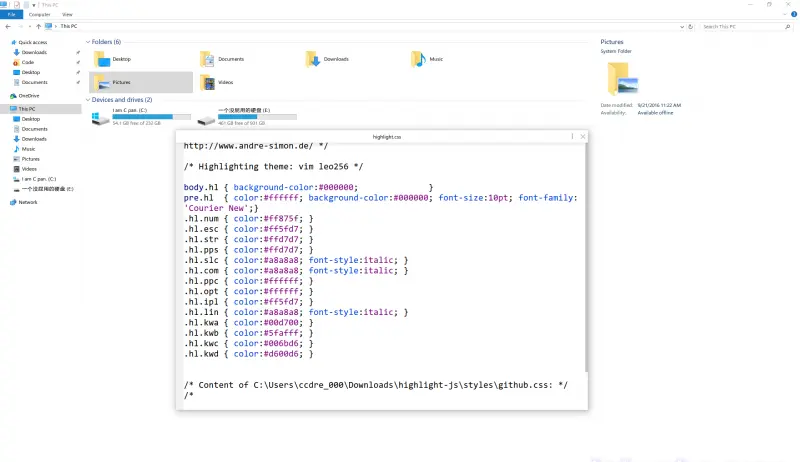
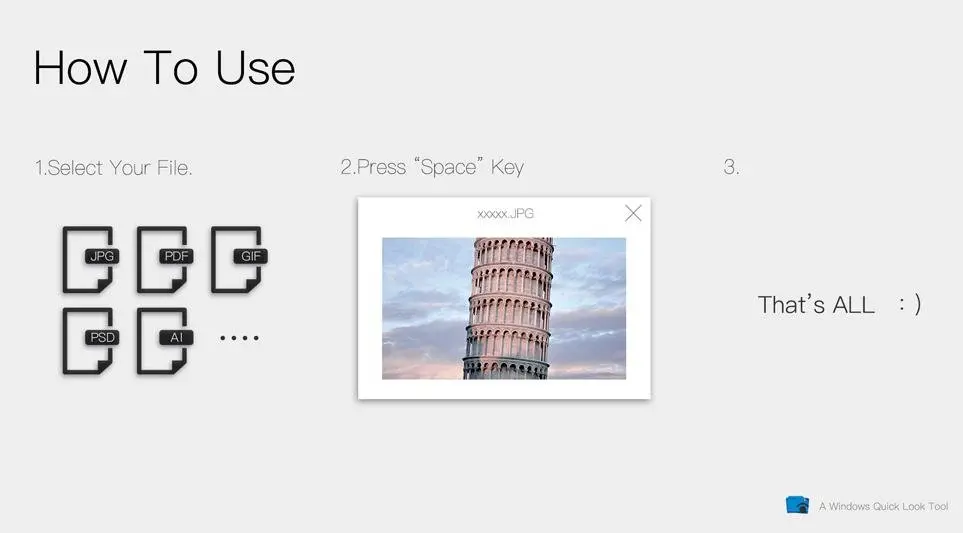
Seer 3.2.3 Free Download brings quick-look functionality to Windows computers. This lightweight software lets you preview files instantly without opening dedicated applications. You simply select any file and press the spacebar to view its contents in seconds. The tool supports images, videos, documents, PDFs, and many other file formats.
Windows users who work with multiple files daily benefit from Seer’s speed and efficiency. It saves time by eliminating the need to launch heavy programs just to check file contents. You can view, zoom, and navigate through files directly from the preview window.
The software integrates smoothly with Windows File Explorer and runs quietly in the background. Seer 3.2.3 offers customizable settings to match your workflow preferences. It works on Windows 7, 8.1, 10, and 11 systems with minimal resource usage.
What Problem Does Seer 3.2.3 Solve?
- The Common Problem: Windows users face a daily challenge when working with files. They must open applications to view file contents. This process wastes time and slows down productivity. Opening Word for text files, Photoshop for images, or Adobe Reader for PDFs takes several seconds each time. When you handle dozens of files daily, these seconds add up to minutes or even hours.
- Why Users Need Seer 3.2.3: Seer 3.2.3 solves this time-wasting problem. It lets you preview any file with a simple spacebar press. You see the content immediately without launching heavy applications. This quick-look feature already exists on macOS, but Windows lacks it by default.
- For Office Workers: You receive multiple email attachments daily. Seer helps you check which document contains the information you need. You don’t open five Word files just to find one paragraph.
- For Designers and Photographers: You browse through hundreds of images in project folders. Seer displays each image instantly when you select it. You identify the right photo without opening image editors repeatedly.
- For Students and Researchers: You manage numerous PDF files and documents. Seer lets you peek inside files to verify their contents. You find the correct research paper or study material faster.
Why Do Users Prefer Seer 3.2.3?
Instant File Preview with Spacebar
Seer 3.2.3 lets you preview any file by simply pressing the spacebar on your keyboard. You don’t need to open heavy programs like Microsoft Word, Adobe Reader, or image editors anymore. When you select a file in Windows File Explorer and tap the spacebar, a preview window appears instantly on your screen. This feature works exactly like the quick look tool that Mac users enjoy on their computers.
You can see what’s inside documents, pictures, videos, and many other file types within one second. The preview window shows you the full content clearly so you can decide if this is the file you actually need. This spacebar shortcut saves you countless hours every week because you avoid opening and closing applications repeatedly throughout your workday.
Support for Multiple File Formats
Seer 3.2.3 supports hundreds of different file types that people use every day on their computers. The software previews common formats like JPEG images, PNG graphics, PDF documents, Word files, Excel spreadsheets, and PowerPoint presentations without any problems. You can also preview video files in formats like MP4, AVI, and MOV directly through the quick look window. Text files, code files, ZIP archives, and even some specialized formats display perfectly in Seer’s preview interface.
The program recognizes each file type automatically and shows it in the best possible way for easy viewing. You don’t need to install extra plugins or additional software to make these formats work with Seer. This wide format compatibility means Seer handles almost every file you encounter during normal computer use, making it a truly universal preview tool for Windows users.
Lightweight and Fast Performance
Seer 3.2.3 runs smoothly on your Windows computer without slowing down your system or eating up valuable resources. The software uses very little RAM memory and barely affects your processor performance even when you preview large files continuously. It starts up quickly when you boot your computer and stays running quietly in the background until you need it. The preview windows load almost instantly regardless of your file size because Seer uses smart loading technology that displays content efficiently.
You won’t experience annoying delays or freezing problems that often happen with bloated software programs. This lightweight design means Seer works perfectly even on older computers with limited hardware specifications. The fast performance ensures your workflow stays smooth and productive throughout the entire day without technical interruptions or frustrating wait times.
Customizable Hotkeys and Settings
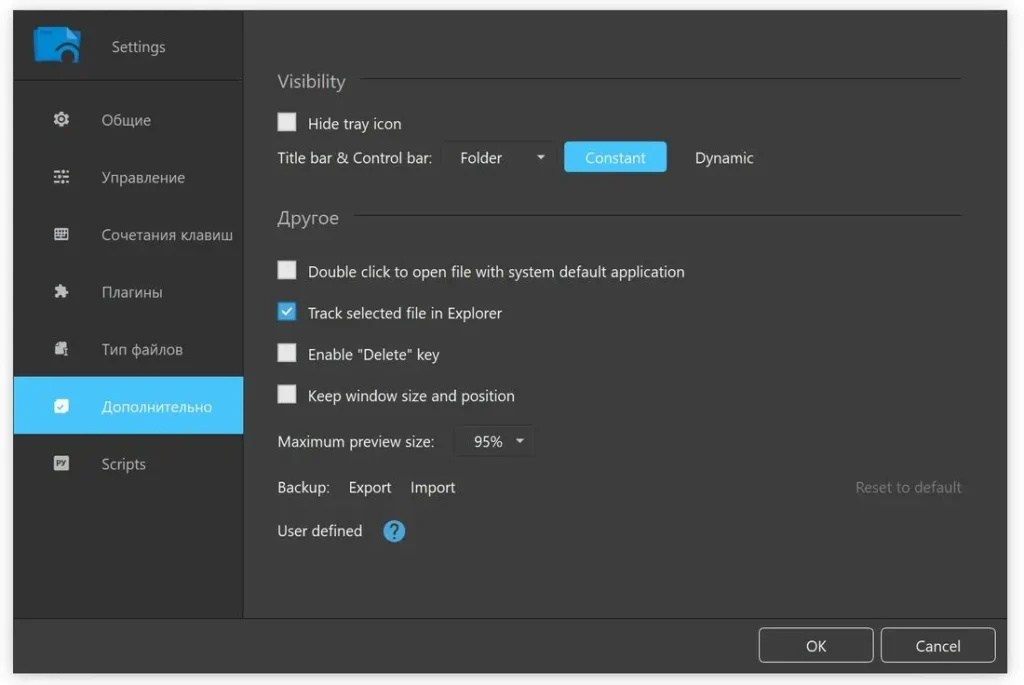
Seer 3.2.3 gives you complete control over how the software behaves and responds to your commands on your computer. You can change the default spacebar hotkey to any other keyboard combination that feels more comfortable for your personal workflow preferences. The settings panel lets you adjust the preview window size, position, and appearance to match exactly how you like working. You can choose whether Seer starts automatically when Windows boots or only runs when you manually launch it.
The software allows you to exclude certain file types from previewing if you don’t want them to appear in quick look windows. You can modify the background color, transparency level, and even the animation speed of the preview interface. These customization options mean Seer adapts perfectly to your unique needs instead of forcing you to work in a predetermined way that might not suit your habits.
Image Viewing with Zoom Controls
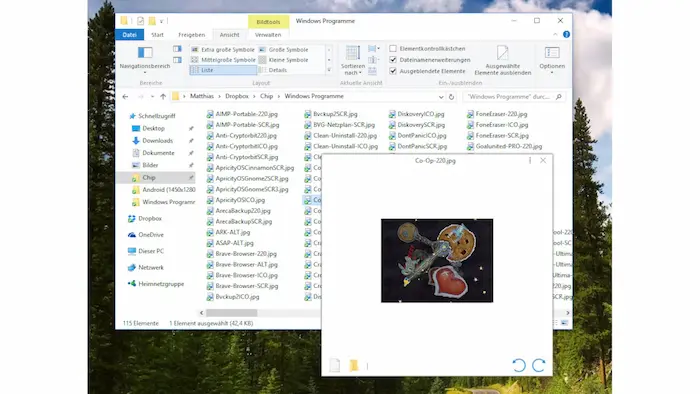
Seer 3.2.3 provides powerful image viewing capabilities that help you examine pictures closely without opening dedicated photo editing software. When you preview an image file, you can zoom in and out using simple mouse wheel scrolls to see tiny details clearly. The software maintains perfect image quality even when you magnify photos to very high zoom levels for detailed inspection. You can pan around large images by clicking and dragging with your mouse to view different sections comfortably.
Seer displays image dimensions, file size, and other useful information directly in the preview window for quick reference. The image viewer supports rotation so you can turn pictures to the correct orientation instantly if they appear sideways. This feature proves extremely helpful for photographers, designers, and anyone who works with visual content regularly and needs quick access to image details throughout their projects.
Video and Audio Playback
Seer 3.2.3 plays video and audio files directly in the preview window so you can watch or listen without launching separate media player applications. The built-in media player includes standard playback controls like play, pause, stop, and a timeline slider for navigation. You can adjust the volume level, skip forward or backward through the content, and even take quick screenshots from videos. The video player handles different codecs and formats smoothly, providing clear playback quality for most common video file types you encounter.
Audio files play with a clean waveform visualization that shows you the sound pattern as the track progresses through playback. This preview capability helps you identify the correct video or audio file from folders containing many similar media files. You save significant time because you verify content instantly instead of opening each file in VLC, Windows Media Player, or other dedicated applications repeatedly.
Document Reading and Text Selection
Seer 3.2.3 displays text documents, PDFs, and code files in a readable format that lets you scroll through pages smoothly. The document viewer renders text clearly with proper formatting, fonts, and layout preservation so everything looks exactly as intended. You can select text directly from the preview window, copy it to your clipboard, and paste it into other applications instantly. This copy function works perfectly for grabbing quotes, code snippets, or specific information without opening the full document editor.
The software shows page numbers and provides easy navigation through multi-page documents using arrow keys or mouse scrolling. You can search for specific words or phrases within documents right from the preview interface to locate information quickly. This document handling capability makes Seer invaluable for students, writers, programmers, and office workers who constantly reference text files and need fast access to written content.
Seamless Windows Explorer Integration
Seer 3.2.3 integrates directly into Windows File Explorer and works automatically wherever you manage your files and folders. The software operates invisibly in the background without cluttering your taskbar or creating unnecessary desktop icons that take up screen space. You access Seer’s preview功能 naturally while browsing files in any folder window, network drive, or external storage device connected to your computer. The integration feels native to Windows because Seer respects your existing File Explorer settings and visual themes perfectly.
You don’t need to learn a new file management system or change your established workflow habits to benefit from quick file previews. Seer works alongside your normal file operations without interfering with copying, moving, deleting, or renaming files in any way. This seamless integration means you gain powerful preview capabilities while your Windows experience remains familiar, comfortable, and exactly as productive as before installing the software.
Screenshots of Seer 3.2.3
System Requirements
- Operating System: Windows 7, Windows 8, Windows 8.1, Windows 10, Windows 11 (32-bit and 64-bit versions supported)
- Processor: Intel Pentium 4 or AMD Athlon 64 processor (or equivalent)
- RAM Memory: Minimum 512 MB RAM (1 GB or more recommended for better performance)
- Hard Disk Space: 50 MB free disk space for installation
- Display: Screen resolution of 1024 x 768 pixels or higher
- Graphics: DirectX 9 compatible graphics card with at least 128 MB video memory
- Additional Software: .NET Framework 4.5 or later version installed on your system
- Internet Connection: Required only for downloading the software (not needed for running Seer)
Technical Details
- Software Name: Seer for Windows
- Version: 3.2.3 (Latest Release)
- File Size: Approximately 15 MB (compact installer package)
- Developer: Corey
- License Type: Freeware (completely free for personal and commercial use)
- Interface Language: Multi-language support including English, Chinese, Spanish, French, German, and more
- Architecture: Compatible with both x86 (32-bit) and x64 (64-bit) Windows systems
- Installation Type: Standalone installer with simple setup wizard
- Update Frequency: Regular updates and bug fixes provided by the developer
- File Format Support: 200+ file formats including images, videos, documents, archives, and code files
- Portable Version: Available as a portable application that runs without installation
How to Download and Install?
- Locate the download button on the page and click it to start downloading the Seer 3.2.3 installer file, which should save automatically to your computer’s Downloads folder.
- Navigate to your Downloads folder, find the Seer setup file (usually named Seer-setup.exe or similar), and double-click it to launch the installation wizard on your screen.
- Follow the on-screen installation prompts by clicking “Next” or “Install” buttons, accept the license agreement if prompted, and choose your preferred installation location or keep the default settings.
- Wait for the installation process to complete (this takes only 30-60 seconds), then click “Finish” to close the installer and launch Seer for the first time.
- Once Seer starts running, it automatically integrates with Windows File Explorer, so you can immediately press the spacebar on any selected file to test the quick preview feature.
FAQs
Yes, Seer 3.2.3 works seamlessly with files located on external USB drives, network folders, cloud storage, and any location accessible through Windows File Explorer.
Yes, Seer 3.2.3 allows you to customize the default spacebar hotkey to any keyboard combination you prefer through the settings panel.
No, Seer 3.2.3 is extremely lightweight and uses minimal system resources, running quietly in the background without affecting your computer’s speed or performance.
Seer 3.2.3 is completely free software that you can download and use without any payment, subscription fees, or hidden costs for both personal and commercial purposes.
Seer 3.2.3 | File Size: 63 MB
UsersDrive | Uploadrar