
What does Adobe Media Encoder do?
Adobe Media Encoder v25.6 Latest Version is professional video encoding software that converts media files into different formats. It works alongside Adobe Premiere Pro and After Effects to help you export videos for various platforms and devices. The software handles batch processing, meaning you can encode multiple files simultaneously while continuing other work.
This tool is designed for video editors, content creators, and media professionals who need reliable format conversion. It supports a wide range of video codecs and presets for YouTube, Vimeo, social media, and broadcast standards. The software includes features like automatic folder monitoring, preset customization, and hardware-accelerated encoding for faster processing.
Adobe Media Encoder v25.6 For Windows simplifies the technical aspects of video export. Whether you’re preparing content for web streaming or professional delivery, it ensures your files meet specific technical requirements while maintaining quality.
What Problem Does Adobe Media Encoder v25.6 Solve?
Video editors often face a common challenge: exporting videos takes a long time and blocks their editing software. Adobe Media Encoder v25.6 solves this by handling all video exports separately. You can send your project from Premiere Pro or After Effects to Media Encoder and immediately return to editing while your videos process in the background.
Different platforms require different video formats. YouTube needs one type of file, Instagram needs another, and professional broadcast has its own standards. Media Encoder eliminates the confusion by providing ready-made presets for each platform. You simply choose your destination, and the software applies the correct settings automatically.
The software also addresses the problem of repetitive export tasks. If you regularly create similar videos, you can save custom presets and apply them with one click. The batch processing feature lets you queue multiple videos for overnight encoding, saving hours of manual work.
Many users struggle with maintaining video quality during compression. Media Encoder uses advanced encoding algorithms to balance file size and visual quality. It supports hardware acceleration through your computer’s GPU, which significantly reduces export times compared to software-only encoding.
For teams and production workflows, Media Encoder offers watch folders. You can set up a folder that automatically encodes any video dropped into it. This feature is particularly useful for automated workflows where multiple people contribute content that needs consistent formatting.
What Are Its Top Features?
Batch Processing for Multiple Videos
Adobe Media Encoder v25.6 lets you convert many video files at the same time without waiting for each one to finish. You can add dozens of videos to the queue and let the software work on all of them automatically. This feature saves you hours of manual work because you don’t need to start each export individually.
You can set up all your videos in the morning and come back later to find them all ready. The software processes each file one after another or uses multiple cores to handle several files together. This makes the encoding process much faster and lets you focus on other important tasks while your videos convert in the background.
Format Presets for Every Platform
The software includes ready-made settings for popular platforms like YouTube, Facebook, Instagram, and Vimeo. You don’t need to guess which format works best for each social media site because Media Encoder already knows the right settings. Each preset automatically adjusts the video resolution, bitrate, and codec to match what each platform requires.
You simply select the platform name from the list and the software handles all the technical details for you. This feature prevents upload errors and ensures your videos look great on every website. Beginners find this extremely helpful because they can export professional-quality videos without learning complicated encoding terms or specifications.
Background Encoding While You Edit
Media Encoder works separately from Adobe Premiere Pro and After Effects, which means you can keep editing while videos export. When you finish editing a project, you send it to Media Encoder with one click and immediately return to your editing work. The encoding happens in a different program window, so your editing software stays fast and responsive.
This workflow dramatically improves productivity for professional editors who work on tight deadlines. You can complete multiple projects in a single day because export time no longer interrupts your creative process. The software manages system resources smartly to balance encoding speed with editing performance.
Watch Folders for Automatic Encoding
You can set up special folders that automatically encode any video file you drop into them. Media Encoder monitors these folders continuously and starts processing new files as soon as they appear. This feature works perfectly for team workflows where multiple people create content that needs the same format.
You save custom settings to a watch folder, and everyone on your team gets consistent results without manual setup. The software can watch several folders at once, each with different encoding settings for different purposes. This automation eliminates repetitive tasks and reduces human error in production workflows.
Hardware Acceleration for Faster Exports
The software uses your computer’s graphics card to speed up the encoding process significantly. Hardware acceleration makes exports finish much faster than using only your main processor. Modern graphics cards handle video encoding very efficiently, which reduces waiting time by half or more in many cases.
You can export high-resolution videos in minutes instead of hours when this feature activates properly. Media Encoder automatically detects compatible graphics cards and enables acceleration when available. This feature matters most when you work with large video files or export multiple videos daily.
Custom Preset Creation and Sharing
You can create your own encoding presets and save them for future projects. This feature helps when you regularly produce videos with specific requirements that standard presets don’t match. You adjust all the settings once, save them with a custom name, and reuse them whenever needed. The software also lets you export these custom presets as files that other people can import and use.
Teams benefit greatly from this because everyone can maintain the same quality standards across all projects. You spend less time configuring settings and more time on creative work when you build a library of useful presets.
Audio and Video Track Selection
Media Encoder gives you control over which audio and video tracks to include in your final export. Some projects contain multiple language tracks or alternate audio mixes that you don’t always need in every version. You can choose specific tracks to keep and disable others before encoding starts.
This feature reduces file sizes and creates versions tailored for different audiences or distribution channels. You can export a version with English audio, then quickly create another with Spanish audio from the same source file. The software clearly displays all available tracks so you make the right selections easily.
Comprehensive Format Support
The software handles nearly every video and audio format that professionals and hobbyists use today. You can import files in one format and export them in completely different formats without quality loss. Media Encoder supports codecs for web streaming, broadcast television, mobile devices, and professional cinema production.
This wide compatibility means you never worry about whether the software can handle your files. You can convert old format videos into modern formats or prepare content for specialized equipment. The software updates regularly to support new formats as technology advances and industry standards change.
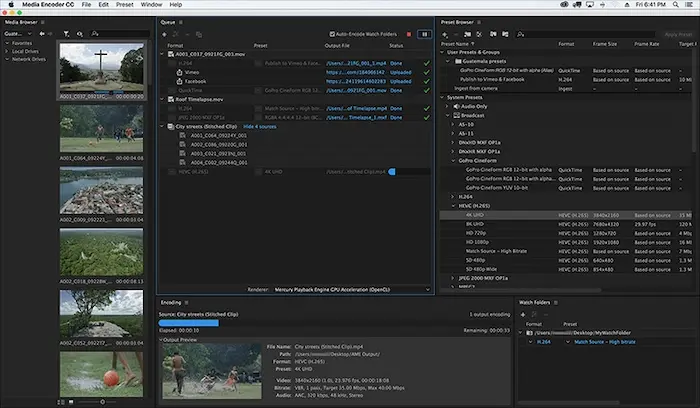
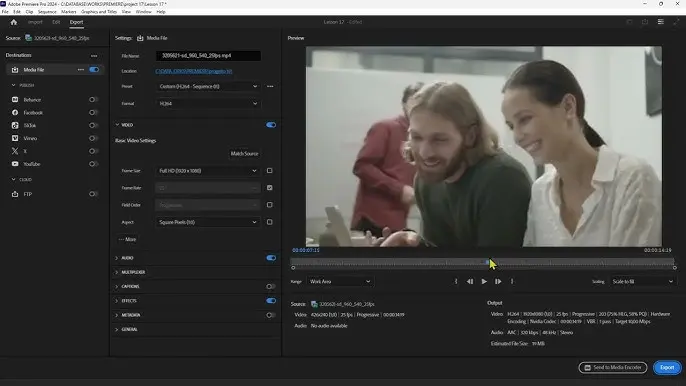
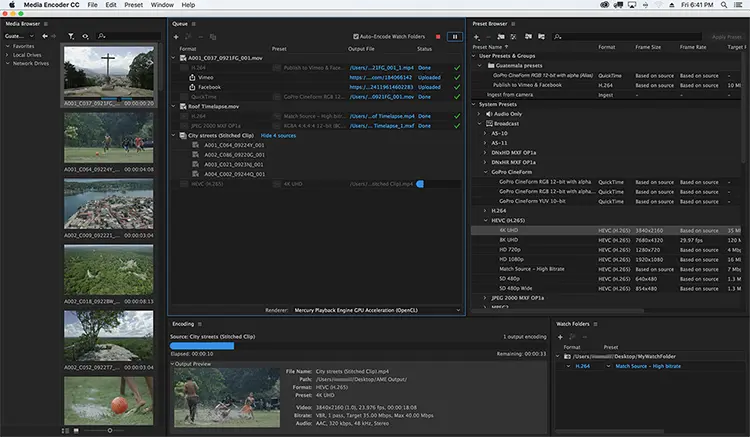
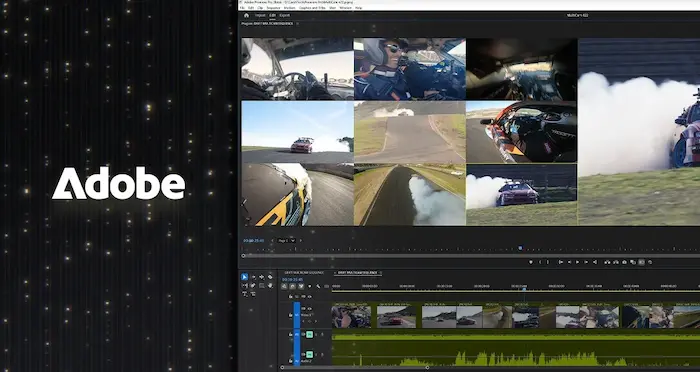
ScreenShots of Adobe Media Encoder
System Requirements
- Operating System: Windows 10 (64-bit) version 1909 or later, Windows 11
- Processor: Intel 6th generation or newer CPU, or AMD equivalent with SSE4.2 support
- RAM: 8 GB minimum (16 GB or more recommended for 4K media)
- Hard Disk Space: 8 GB of available storage for installation
- Graphics Card: 2 GB of GPU VRAM (4 GB recommended for 4K and higher resolutions)
- Display Resolution: 1920 x 1080 or greater display resolution
- Internet Connection: Required for software activation and online services
Technical Details
- Software Name: Adobe Media Encoder
- Version: 25.6
- File Size: Approximately 1.2 GB (installer)
- Developer: Adobe Inc.
- License Type: Subscription-based (Adobe Creative Cloud)
- Language Support: Multiple languages including English, Spanish, French, German, Japanese
- Architecture: 64-bit application
- Compatible Software: Adobe Premiere Pro, After Effects, Audition, Prelude
- Supported Formats: MP4, MOV, AVI, MXF, QuickTime, H.264, H.265/HEVC, ProRes, DNxHD/DNxHR
- Update Frequency: Regular updates through Adobe Creative Cloud
Related This:
- Adobe Photoshop 2026 v27.1.0 Multilingual
- Adobe Acrobat Reader DC for Windows Free Download
- Winxvideo AI Free Download
How To Download And Install?
- Step 1: Download the Adobe Creative Cloud desktop application from the website and run the installer file on your computer.
- Step 2: Open the Creative Cloud app after installation and sign in with your Adobe account credentials to access all available Adobe applications.
- Step 3: Find Adobe Media Encoder v25.6 in the list of apps, then click the “Install” button next to it to start downloading the software.
- Step 4: Wait for the download and automatic installation to complete, which may take 10 to 30 minutes depending on your internet speed.
- Step 5: Launch Adobe Media Encoder from your Start menu or desktop shortcut once installation finishes, and the software is ready to use immediately.
FAQs
Adobe Media Encoder v25.6 requires a paid Adobe Creative Cloud subscription, but Adobe offers a 7-day free trial for new users to test the software before purchasing.
Media Encoder maintains original video quality when you use appropriate settings, but file compression for web platforms may reduce quality slightly to meet size requirements
Encoding time depends on your video length, resolution, and computer specs, but a 10-minute 1080p video typically takes 5-15 minutes with hardware acceleration enabled.
Yes, Adobe Media Encoder v25.6 works as a standalone application and can encode video files independently without requiring Premiere Pro or any other Adobe software installed.