What does Zentimo xStorage Manager do?
Zentimo xStorage Manager Free Download is a Windows utility that helps users manage external storage devices. It replaces the default Windows “Safely Remove Hardware” feature with a smarter, more reliable solution. The software gives users full control over USB drives, hard disks, and other connected storage devices.
The program allows users to safely eject devices, assign custom names, and run automatic actions when they connect or disconnect a drive. It also tracks device usage and prevents data loss by ensuring no files stay open before removal. Users can manage multiple devices from a clean system tray interface.
Zentimo xStorage Manager free for pc suits freelancers, office workers, and anyone who regularly uses external drives on Windows. It works well for people who want better device control without complex settings or technical knowledge.
What Problem Does Zentimo xStorage Manager Solve?
- The Core Problem: Many Windows users face a common issue. When they try to remove a USB drive or external hard disk, Windows shows an error. It says the device is still in use. This happens even when no files seem open. Users either wait or force-remove the device, which risks data corruption.
- Why the Default Windows Tool Falls Short: Windows includes a basic “Safely Remove Hardware” tool. But it does not show which program is using the device. It gives no details and offers no control. Users feel stuck and frustrated.
- How Zentimo xStorage Manager Helps: Zentimo xStorage Manager solves this directly. It shows exactly which files or programs are blocking the device. Users can close those processes and safely eject the drive in one click. The software also supports custom device names, making it easy to identify drives quickly.
Real Use Cases:
- A freelancer works with multiple USB drives daily and needs fast, safe removal.
- An office worker shares an external hard disk between two computers.
- A student carries important project files on a portable drive and cannot afford data loss.
Who Needs This Software
Any Windows user who regularly connects and disconnects external storage devices can benefit. It suits beginners who want simple control and advanced users who need automation features. Zentimo xStorage Manager fills the gap that Windows leaves open.
What Are Its Top Features?
Safe and Smart Device Removal
Zentimo xStorage Manager makes removing external devices safe and simple. When a user wants to unplug a USB drive or external hard disk, the software checks if any program is still using it. If something blocks the removal, Zentimo shows the user exactly what is causing the problem.
The user can then close that program and eject the device without any risk of losing data. This feature removes the guesswork that Windows normally leaves behind and gives users full confidence when disconnecting storage devices.
Custom Device Naming for Easy Identification
Zentimo xStorage Manager allows users to give custom names to their external drives and USB devices. Instead of seeing a generic label like “USB Drive E,” users can rename it something meaningful like “Work Backup” or “Project Files.” This makes it much easier to identify the right device when multiple drives are connected at the same time.
The software saves these custom names and remembers them every time the user connects the same device again. This small feature saves time and reduces confusion for people who work with many storage devices regularly.
One-Click Eject From the System Tray
Zentimo xStorage Manager sits quietly in the Windows system tray and stays ready at all times. Users can eject any connected device with just one click, without opening any extra windows or menus. The software shows a clean list of all connected devices directly from the tray icon.
This makes the whole process faster and much more convenient than using the default Windows removal tool. People who disconnect devices many times a day will find this feature especially useful and time-saving.
Automatic Actions on Device Connect or Disconnect
Zentimo xStorage Manager lets users set up automatic actions that run when they plug in or remove a device. For example, the software can open a specific folder, launch a backup program, or run a script when a drive connects.
Users set these actions once, and the software handles everything automatically from that point on. This feature works great for people who follow the same steps every time they use a particular drive. It turns a repetitive manual task into a smooth and automatic process that saves time every day.
Detection of Programs Blocking Device Removal
One of the most helpful features in Zentimo xStorage Manager is its ability to find programs that block safe removal. When a device cannot eject, the software scans and displays a clear list of files or applications causing the blockage.
The user can see the program name and decide to close it directly from within Zentimo. This removes the frustration of not knowing why Windows refuses to let go of a device. It gives users real control and helps them avoid the risky habit of pulling out drives without safe ejection.
Support for Multiple Device Types
Zentimo xStorage Manager works with a wide range of external storage devices connected to a Windows computer. It supports USB flash drives, external hard disks, memory card readers, and other removable storage tools. The software recognizes these devices automatically as soon as the user plugs them in.
Users do not need to install extra drivers or adjust any settings for the software to detect new device types. This broad support makes Zentimo a reliable tool for anyone who works with different kinds of storage hardware on a regular basis.
Device Usage History and Tracking
Zentimo xStorage Manager keeps a record of all the devices that users connect to their computer over time. Users can view this history to see which drives they used, when they connected them, and how often they appear. This tracking feature helps users stay organized, especially when managing multiple drives for different projects or clients.
It also makes it easier to spot any unfamiliar device that connected without the user’s knowledge. Having this log available gives users a better sense of control and awareness over their storage activity.
Portable and Lightweight Performance
Zentimo xStorage Manager runs smoothly without slowing down the computer or using too many system resources. The software has a small file size and a lightweight design that allows it to work quietly in the background at all times. Users do not notice any drop in computer speed even when the software actively monitors connected devices.
It also supports portable installation, which means users can run it without a full setup process on certain systems. This makes Zentimo a practical choice for users who want powerful device management without adding extra load to their Windows PC.
ScreenShots of Zentimo xStorage Manager
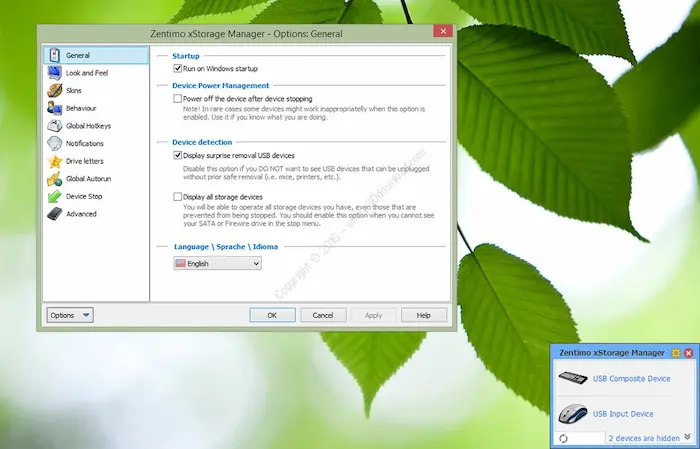
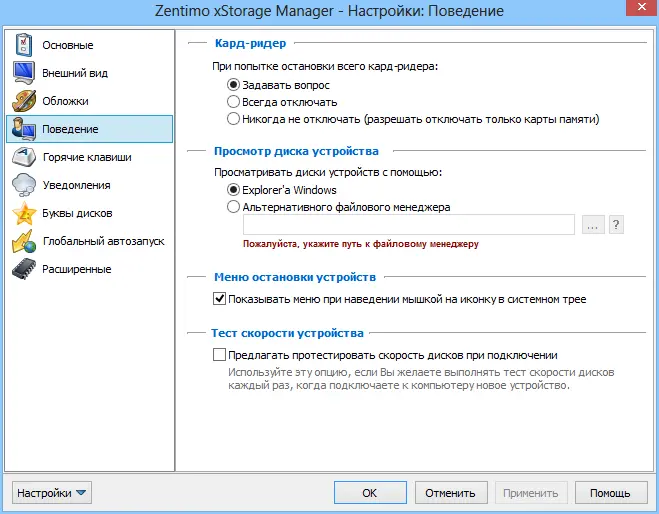
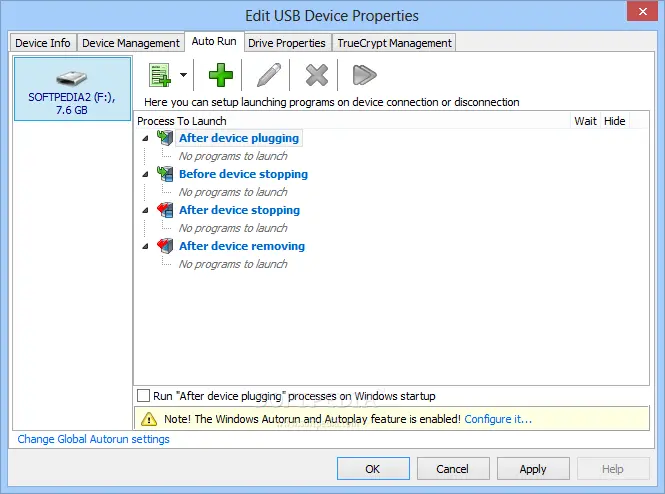
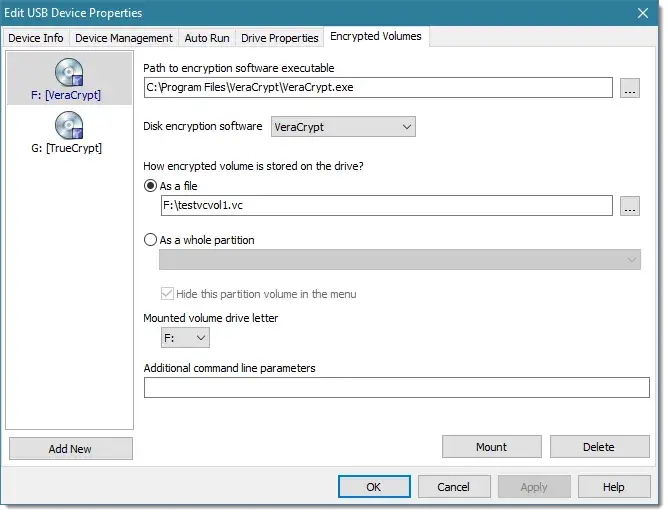
System Requirements
- Requires operating system: Supports Windows 11, Windows 10, Windows 8.1, Windows 8, Windows 7 (32-bit and 64-bit).
- Requires processor: Supports any x86 or x64 CPU compatible with the installed Windows version.
- Requires RAM: Operates with a minimum of 512 MB RAM; 1 GB or more improves performance.
- Requires storage space: Uses approximately 10–20 MB of free disk space for installation.
- Requires USB support: Needs USB 2.0, USB 3.0, or newer ports for device management.
- Requires administrative rights: Installs and manages devices with administrator privileges.
Technical Details
- Developer: Crystal Rich Ltd. develops and maintains Zentimo xStorage Manager.
- Software type: Operates as USB device management software for Windows systems.
- Core function: Manages USB, SATA, and eSATA storage devices through a unified interface.
- Device control: Safely removes, powers off, and re-enables external storage devices.
- Drive management: Hides, renames, and protects portable drives.
- Automation: Launches applications automatically when you connect specific devices.
- Hotkey support: Executes device actions via customizable keyboard shortcuts.
- Portable device support: Detects card readers, flash drives, and external HDD/SSD units.
- Multilingual interface: Provides multiple language options within the UI.
- Update system: Includes built-in update checking for new software versions.
How to Download and Install?
- Click the Download button and save the setup file to your computer.
- Open the downloaded
.exefile to start the installation process. - Click Yes if Windows asks for permission to run the installer.
- Follow the on-screen setup steps and click Install to complete the installation.
- Launch Zentimo from the desktop shortcut or Start menu after installation finishes.
Related This:
- WiFi Password Recovery Pro Basic 2024 v8.0.0.1 | XenArmor
- IObit Driver Booster Pro: Update PC + Portable Option
- Seer 3.2.3 for Windows Latest
People Also Ask
You click the Zentimo tray icon, select the connected USB device, and choose Safely Remove. Zentimo stops all running processes and prevents data corruption before disconnecting the device.
Windows shows this error when background processes lock the USB drive. Zentimo identifies and stops blocking processes, which allows you to eject the device safely.
Yes, Zentimo can fully power off supported USB, SATA, and eSATA drives after safe removal, which reduces energy use and protects the hardware from wear.
You prevent data loss by using Zentimo’s safe removal option, which flushes write-cache data and closes active file handles before disconnecting the device.
Zentimo xStorage Manager 3.3.1.1303 | File Size: 3 MB
UsersDrive | NextCloud
Portable Zentimo xStorage Manager 3.3.1.1303 | File Size: 4 MB
UsersDrive | NextCloud